PDFs are incredibly popular, used for everything from business documents to everyday tasks at home. In fact, over 100 billion PDFs were added to OneDrive and SharePoint in just last year – and its popularity as a file format shows no signs of slowing down. We can bet you’re fans of using PDF’s, and so we’re excited to walk you through everything you can do with this popular file format in OneDrive. Whether you’re annotating documents, bookmarking pages, or merging PDF documents, OneDrive offers a robust set of tools to make managing PDFs effortless and efficient.
There’s already so many things you can do with your PDF’s whether you’re using OneDrive at home or at work:
Freemium PDF features in OneDrive
OneDrive for Consumer
OneDrive for Business
Annotation and markup tools
Easily collaborate and share feedback by using digital ink, highlighting text, drawing shapes, and inserting sticky notes directly onto your PDF files.
⚫
⚫
Bookmark PDF pages
Navigate effortlessly through lengthy documents by adding bookmarks to important sections, just like using tabs in a physical book.
⚫(OneDrive for iOS/iPadOS and Android only.)
⚫(OneDrive for iOS/iPadOS and Android only.)
Change the appearance of your PDF
Enhance your reading experience by adjusting the background color of your PDFs to dark mode, sepia mode, or light mode. Ideal for reading in different lighting conditions.
⚫ (OneDrive for Android only.)
⚫ (OneDrive for Android only.)
Rotate PDF pages
Correct the orientation of scanned documents by rotating individual or multiple pages 90° clockwise. Perfect for fixing upside-down or sideways pages.
⚫
⚫
Jump to specific PDF page
Quickly access specific sections by jumping directly to any page in your PDF documents with just a click.
⚫
⚫
Display table of content
Effortlessly navigate through long documents using the clickable table of contents.
⚫(Coming soon to OneDrive for web)
⚫(Coming soon to OneDrive for web)
Premium PDF features in OneDrive
OneDrive for Consumer [1]
OneDrive for Business [2]
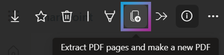
Extract PDF pages
Easily extract specific pages from your PDF documents to create new, smaller files. Ideal for sharing only the most relevant sections.
⚫
⚫
Merge PDFs
Seamlessly combine multiple PDFs into a single, organized document. Perfect for consolidating reports, presentations, and more.
⚫
⚫
[1] Premium features are available to OneDrive users with M365 Basic, M365 Personal and Family subscriptions.
[2] Premium features are accessible to all OneDrive commercial users with SharePoint in their subscription plan.
Let’s take a look first at the features that you can use for free on OneDrive.
Enhance Collaboration with Annotation and Markup Tools
PDFs are used in a variety of collaboration scenarios, and to help, we are releasing new annotation and markup features for easier collaboration. Imagine you’re working on a project with your team, and you need to share feedback or highlight important sections of a PDF. Instead of sending endless emails or starting chats, you can simply use the PDF annotation tools available in OneDrive. These features allow you to use digital, hand-drawn ink, highlight text, draw shapes, and even insert sticky notes directly onto your PDF. The annotations and notes appear on your document when you share them with other colleagues via OneDrive.
Here’s how you can easily annotate a PDF in OneDrive:
Find the PDF you want to annotate in your OneDrive and tap to open it.
At the bottom of the screen, tap on Annotation to enter editing mode.
Choose an annotation tool from the bottom of the screen or select a drawing markup tool from the top.
Change the pen color by tapping on the color picker at the bottom of the screen and choose from any of the preset colors. You can also adjust the thickness and transparency of the ink here.
When you’re done, just tap Done at the top left of the screen, and then tap Save at the top right, to save your changes back to OneDrive.
Now when you share your annotated PDF via OneDrive, your colleagues will see your annotations too.
Navigate PDFs Effortlessly with Bookmarks
Scrolling through a lengthy PDF document and trying to locate a specific section can be a frustrating experience, right? That’s where the PDF bookmark feature is handy. Think of bookmarks in PDFs as your personal navigation tool, much like the tabs you might use in a physical book. They allow you and recipients to easily jump directly to important sections with just a click, making your reading experience smoother and more enjoyable.
To use bookmarks:
At the bottom of the screen, tap Bookmark to add a bookmark to the current page you’re viewing.
After adding a bookmark, you’ll see a confirmation dialog at the top of the screen.o view all the pages with bookmarks, tap the Thumbnail icon at the top right of the screen.
At the top of the screen, tap Bookmarked to see only the pages with bookmarks. From this view, you can also navigate to a specific page by tapping on it.
From the All Pages view, you can select multiple pages to add new bookmarks or remove existing ones.
Jump to Specific Sections with Table of Contents
Also helping you to more easily navigate a lengthy PDF is OneDrive’s handy Table of Contents feature. When your PDF has an embedded table of contents, OneDrive will display the chapter or section titles along with their page numbers, making it a snap to jump to specific chapters or sections.
To view a PDF’s table of contents:
If the PDF includes the necessary metadata for a table of contents, you’ll see an icon at the top right of the screen. Clicking on it, opens the table of contents.
The table of contents with clickable chapters or sections will appear on the left side of the screen.
Optimized PDF Viewing with Reading Mode
You might have to read a PDF under varying lighting conditions. You can maximize your comfortability and readability of your document by adjusting the Appearance of that PDF. When viewing a PDF in OneDrive, you can adjust the background to dark mode, sepia mode, or light mode, making it easy to read no matter the type of environment.
To change the appearance of a PDF:
Open a PDF in OneDrive for Android and tap to expand the bottom sheet of the screen.
Tap Appearance.
In the Appearance window, select the colored circle for day, night, or sepia mode.
Adjusting a PDF’s Orientation with Page Rotation
With PDF page rotation, you can simply adjust the orientation of any of the pages within a PDF document. This is especially useful for fixing multi-page scanned documents that may have been saved upside down or sideways. With the Rotation feature, you can choose to rotate all pages or just specific ones within your PDF.
To rotate a single page:
Open the OneDrive iOS or Android app, then open the PDF with the page you want to rotate.
Scroll to the page which you want to rotate. Press anywhere there isn’t text. Once a menu pops up, tap Rotate to rotate the page 90 degrees clockwise.
To rotate multiple pages:
Open the OneDrive iOS or Android app, then open the PDF with the pages you want to rotate.
At the top of your screen, tap the grid icon to show a thumbnail view of the PDF’s pages.
Tap Select.
Tap to select the pages which you want to rotate or tap Select all if you want to rotate them all.
Tap the rotate icon on the toolbar along the bottom of your screen to rotate all the selected pages 90 degrees clockwise.
Exploring OneDrive’s Premium PDF Features
Now that we’ve explored all the free PDF features available, let’s dive into some exciting features available to our M365 Consumer customers with M365 Basic, M365 Personal, or M365 Family, and to our M365 Business customers with SharePoint Premium..
Extract Pages from PDFs
For our M365 paid customers, you can easily split a PDF into multiple smaller PDFs using the Extract tool. This makes it simple to pick and separate the pages you need, creating a brand-new (shorter) PDF file in just a snap!
How to split a PDF file using the Extract feature on OneDrive for Web:
Open the PDF file you want to split.
At the top left of the screen,click Extract action
Select page(s) to extract then click Extract on top left of the screen.
Choose where you’d like to save the new PDF file. You can also rename the file at the bottom of the save dialog then click Save here.
When finished, a confirmation dialog appears at the bottom of the screen.
This feature also works on OneDrive on iOS, iPadOS, and Android. Here’s how:
Open the PDF file you want to split.
At the top left of the screen, tap see more button (…) to see the new menu.
Select Extract from the menu options.
Merge Multiple PDFs
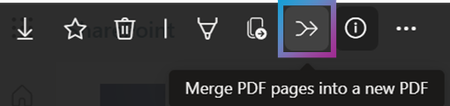
While the Extract feature let’s you pick out individual pages from a PDF, the Merge feature lets you easily combine multiple PDF files into a single PDF. It’s a simple as picking the files you want to merge, and voila – you’ve got a brand-new, merged PDF saved directly to your OneDrive or SharePoint Document Library.
Here’s how you can easily merge multiple PDF files into one PDF on OneDrive for web:
Open one of the PDF files you want to combine in OneDrive for Web.
At the top left of the screen, click Merge action.
Choose two or more PDF files you want to merge from the merge dialog box. You can drag and drop the files to rearrange their order. Once done, click Next.
Choose where you’d like to save the new PDF file. You can also rename the file at the bottom of the save dialog then click Save here.
When finished, a confirmation dialog appears at the bottom of the screen.
Just like Extract, you can also use Merge on OneDrive on iOS, iPadOS, and Android:
Open one of the PDF files you want to combine in OneDrive.
At the top left of the screen, tap see more button (…) to see the new menu.
Select Merge.
Thanks
We’ve been on a focused journey enhancing the PDF features in OneDrive, because we know that for so many of our customers, it’s their file format of choice. We hope you find our new and existing PDF features in OneDrive useful in your life at work or at home.
But we don’t want to stop here, and we need your feedback to keep improving! Dive into these features, give them a spin, and let us know what you think. What works great? What could be better? And most importantly, what do you want to see next?
Drop your comments below or fill this short survey directly. Your insights are invaluable, and together, we can make OneDrive the ultimate tool for all your PDF needs.
Happy exploring! 📄✨
About the Author
Belle Podeanu is a product manager at Microsoft. She collaborates with Office, Edge, and other platforms to provide comprehensive cross-device functionalities for OneDrive and SharePoint, including productivity features and Copilot-enabled experiences. In her free time, she enjoys playing soul-like games, ARPGs, MMOs, and asymmetrical games.
Stay updated on OneDrive and SharePoint news by connecting with Belle here.
PDFs are incredibly popular, used for everything from business documents to everyday tasks at home. In fact, over 100 billion PDFs were added to OneDrive and SharePoint in just last year – and its popularity as a file format shows no signs of slowing down. We can bet you’re fans of using PDF’s, and so we’re excited to walk you through everything you can do with this popular file format in OneDrive. Whether you’re annotating documents, bookmarking pages, or merging PDF documents, OneDrive offers a robust set of tools to make managing PDFs effortless and efficient.
There’s already so many things you can do with your PDF’s whether you’re using OneDrive at home or at work:
Freemium PDF features in OneDrive
OneDrive for Consumer
OneDrive for Business
Annotation and markup tools
Easily collaborate and share feedback by using digital ink, highlighting text, drawing shapes, and inserting sticky notes directly onto your PDF files.
⚫
⚫
Bookmark PDF pages
Navigate effortlessly through lengthy documents by adding bookmarks to important sections, just like using tabs in a physical book.
⚫(OneDrive for iOS/iPadOS and Android only.)
⚫(OneDrive for iOS/iPadOS and Android only.)
Change the appearance of your PDF
Enhance your reading experience by adjusting the background color of your PDFs to dark mode, sepia mode, or light mode. Ideal for reading in different lighting conditions.
⚫ (OneDrive for Android only.)
⚫ (OneDrive for Android only.)
Rotate PDF pages
Correct the orientation of scanned documents by rotating individual or multiple pages 90° clockwise. Perfect for fixing upside-down or sideways pages.
⚫
⚫
Jump to specific PDF page
Quickly access specific sections by jumping directly to any page in your PDF documents with just a click.
⚫
⚫
Display table of content
Effortlessly navigate through long documents using the clickable table of contents.
⚫(Coming soon to OneDrive for web)
⚫(Coming soon to OneDrive for web)
Premium PDF features in OneDrive
OneDrive for Consumer [1]
OneDrive for Business [2]
Extract PDF pages
Easily extract specific pages from your PDF documents to create new, smaller files. Ideal for sharing only the most relevant sections.
⚫
⚫
Merge PDFs
Seamlessly combine multiple PDFs into a single, organized document. Perfect for consolidating reports, presentations, and more.
⚫
⚫
[1] Premium features are available to OneDrive users with M365 Basic, M365 Personal and Family subscriptions.
[2] Premium features are accessible to all OneDrive commercial users with SharePoint in their subscription plan.
Let’s take a look first at the features that you can use for free on OneDrive.
Enhance Collaboration with Annotation and Markup Tools
PDFs are used in a variety of collaboration scenarios, and to help, we are releasing new annotation and markup features for easier collaboration. Imagine you’re working on a project with your team, and you need to share feedback or highlight important sections of a PDF. Instead of sending endless emails or starting chats, you can simply use the PDF annotation tools available in OneDrive. These features allow you to use digital, hand-drawn ink, highlight text, draw shapes, and even insert sticky notes directly onto your PDF. The annotations and notes appear on your document when you share them with other colleagues via OneDrive.
Here’s how you can easily annotate a PDF in OneDrive:
Find the PDF you want to annotate in your OneDrive and tap to open it.
At the bottom of the screen, tap on Annotation to enter editing mode.
Choose an annotation tool from the bottom of the screen or select a drawing markup tool from the top.
Change the pen color by tapping on the color picker at the bottom of the screen and choose from any of the preset colors. You can also adjust the thickness and transparency of the ink here.
When you’re done, just tap Done at the top left of the screen, and then tap Save at the top right, to save your changes back to OneDrive.
Now when you share your annotated PDF via OneDrive, your colleagues will see your annotations too.
Navigate PDFs Effortlessly with Bookmarks
Scrolling through a lengthy PDF document and trying to locate a specific section can be a frustrating experience, right? That’s where the PDF bookmark feature is handy. Think of bookmarks in PDFs as your personal navigation tool, much like the tabs you might use in a physical book. They allow you and recipients to easily jump directly to important sections with just a click, making your reading experience smoother and more enjoyable.
To use bookmarks:
At the bottom of the screen, tap Bookmark to add a bookmark to the current page you’re viewing.
After adding a bookmark, you’ll see a confirmation dialog at the top of the screen.
To view all the pages with bookmarks, tap the Thumbnail icon at the top right of the screen.
At the top of the screen, tap Bookmarked to see only the pages with bookmarks. From this view, you can also navigate to a specific page by tapping on it.
From the All Pages view, you can select multiple pages to add new bookmarks or remove existing ones.
Jump to Specific Sections with Table of Contents
Also helping you to more easily navigate a lengthy PDF is OneDrive’s handy Table of Contents feature. When your PDF has an embedded table of contents, OneDrive will display the chapter or section titles along with their page numbers, making it a snap to jump to specific chapters or sections.
To view a PDF’s table of contents:
If the PDF includes the necessary metadata for a table of contents, you’ll see an icon at the top right of the screen. Clicking on it, opens the table of contents.
The table of contents with clickable chapters or sections will appear on the left side of the screen.
Optimized PDF Viewing with Reading Mode
You might have to read a PDF under varying lighting conditions. You can maximize your comfortability and readability of your document by adjusting the Appearance of that PDF. When viewing a PDF in OneDrive, you can adjust the background to dark mode, sepia mode, or light mode, making it easy to read no matter the type of environment.
To change the appearance of a PDF:
Open a PDF in OneDrive for Android and tap to expand the bottom sheet of the screen.
Tap Appearance.
In the Appearance window, select the colored circle for day, night, or sepia mode.
Adjusting a PDF’s Orientation with Page Rotation
With PDF page rotation, you can simply adjust the orientation of any of the pages within a PDF document. This is especially useful for fixing multi-page scanned documents that may have been saved upside down or sideways. With the Rotation feature, you can choose to rotate all pages or just specific ones within your PDF.
To rotate a single page:
Open the OneDrive iOS or Android app, then open the PDF with the page you want to rotate.
Scroll to the page which you want to rotate. Press anywhere there isn’t text. Once a menu pops up, tap Rotate to rotate the page 90 degrees clockwise.
To rotate multiple pages:
Open the OneDrive iOS or Android app, then open the PDF with the pages you want to rotate.
At the top of your screen, tap the grid icon to show a thumbnail view of the PDF’s pages.
Tap Select.
Tap to select the pages which you want to rotate or tap Select all if you want to rotate them all.
Tap the rotate icon on the toolbar along the bottom of your screen to rotate all the selected pages 90 degrees clockwise.
Exploring OneDrive’s Premium PDF Features
Now that we’ve explored all the free PDF features available, let’s dive into some exciting features available to our M365 Consumer customers with M365 Basic, M365 Personal, or M365 Family, and to our M365 Business customers with SharePoint Premium..
Extract Pages from PDFs
For our M365 paid customers, you can easily split a PDF into multiple smaller PDFs using the Extract tool. This makes it simple to pick and separate the pages you need, creating a brand-new (shorter) PDF file in just a snap!
How to split a PDF file using the Extract feature on OneDrive for Web:
Open the PDF file you want to split.
At the top left of the screen,click Extract action
Select page(s) to extract then click Extract on top left of the screen.
Choose where you’d like to save the new PDF file. You can also rename the file at the bottom of the save dialog then click Save here.
When finished, a confirmation dialog appears at the bottom of the screen.
This feature also works on OneDrive on iOS, iPadOS, and Android. Here’s how:
Open the PDF file you want to split.
At the top left of the screen, tap see more button (…) to see the new menu.
Select Extract from the menu options.
Merge Multiple PDFs
While the Extract feature let’s you pick out individual pages from a PDF, the Merge feature lets you easily combine multiple PDF files into a single PDF. It’s a simple as picking the files you want to merge, and voila – you’ve got a brand-new, merged PDF saved directly to your OneDrive or SharePoint Document Library.
Here’s how you can easily merge multiple PDF files into one PDF on OneDrive for web:
Open one of the PDF files you want to combine in OneDrive for Web.
At the top left of the screen, click Merge action.
Choose two or more PDF files you want to merge from the merge dialog box. You can drag and drop the files to rearrange their order. Once done, click Next.
Choose where you’d like to save the new PDF file. You can also rename the file at the bottom of the save dialog then click Save here.
When finished, a confirmation dialog appears at the bottom of the screen.
Just like Extract, you can also use Merge on OneDrive on iOS, iPadOS, and Android:
Open one of the PDF files you want to combine in OneDrive.
At the top left of the screen, tap see more button (…) to see the new menu.
Select Merge.
Thanks
We’ve been on a focused journey enhancing the PDF features in OneDrive, because we know that for so many of our customers, it’s their file format of choice. We hope you find our new and existing PDF features in OneDrive useful in your life at work or at home.
But we don’t want to stop here, and we need your feedback to keep improving! Dive into these features, give them a spin, and let us know what you think. What works great? What could be better? And most importantly, what do you want to see next?
Drop your comments below or fill this short survey directly. Your insights are invaluable, and together, we can make OneDrive the ultimate tool for all your PDF needs.
Happy exploring! 📄✨
About the Author
Belle Podeanu is a product manager at Microsoft. She collaborates with Office, Edge, and other platforms to provide comprehensive cross-device functionalities for OneDrive and SharePoint, including productivity features and Copilot-enabled experiences. In her free time, she enjoys playing soul-like games, ARPGs, MMOs, and asymmetrical games.
Stay updated on OneDrive and SharePoint news by connecting with Belle here.
Quay Health Solutions (North Hub) has sent you a message
N
no-reply.accurx13@nhs.net
To:You
Wed 16/10/2024 15:08
Please DO NOT reply to this email address as it will NOT be delivered to your healthcare provider. Use the link below to reply to your healthcare provider.
Thanks, Mr Dennis Kamara Quay Health Solutions (North Hub)
Your Microsoft Clipchamp Premium subscription renewal was unsuccessful
M
Microsoft<microsoft-noreply@microsoft.com>
To:rattynem@btinternet.com
Wed 16/10/2024 08:38
Update your payment information to renew your Microsoft Clipchamp Premium subscriptionWe attempted to renew your Microsoft Clipchamp Premium subscription on October 9, 2024, but the charge of GBP 9.99 to Visa **4107 was unsuccessful.To avoid cancelation, please update your payment information or choose another method of payment for your subscription.Renew your subscription >Did you find this email helpful? YesNoDates are displayed per Coordinated Universal Time. Order date may vary based on your location.Privacy StatementMicrosoft Corporation, One Microsoft Way, Redmond, WA 98052
Thank you for visiting NatWest Brixton. We’re dedicated to making our customer experience the best it can be. We would appreciate your feedback on your recent experience with us which will only take a couple of minutes. We will combine your feedback with our customer records to better understand how to improve the service we provide. Please be assured that we will never use your feedback to sell or market anything to you. Please begin by answering the question below. Based on your recent experience in branch, how likely are you to recommend NatWest Brixton to a friend or family member? Please give your answer on a scale where ‘0’ means ‘not at all likely’ and ‘10’ means ‘extremely likely’.Not at all likely Extremely likely012345678910Thank you in advance for helping us to make your experience better in the future.Raghu Narula Managing Director, Customer Engagement and Distribution
About this emailThis email is confidential and intended for the addressee only. Please delete if that is not you.This is a service message designed to give you the opportunity to provide us with your feedback on the products and services you hold with us. If you no longer wish to receive this type of message by email click here. You will continue to receive important information about your account.Please do not reply to this email as the address is not monitored. Visit our Support Centre if you have any queries and we’ll be happy to help.Your information is our priorityThe information you provide will not be passed on to any other party and any personal details you provide will not be used in any sales or marketing activity. To see our full updated privacy notice visit our privacy hub.National Westminster Bank Plc. Registered in England and Wales No. 929027. Registered Office: 250 Bishopsgate, London EC2M 4AA. Financial Services Firm Reference Number 121878.Authorised by the Prudential Regulation Authority and regulated by the Financial Conduct Authority and the Prudential Regulation Authority.Important Security InformationTo help you identify our email and as an extra security measure the second half of your postcode is shown at the top. If you have not provided us with this information or your personal details have changed please contact us to update your details.NatWest will NEVER ask for your full PIN or password when identifying you on the phone or online, and will NEVER ask for Card Reader codes on the phone or when logging in.Fraudsters may claim to be the bank, police or other companies you trust to try and access security information. If you receive a call or email from NatWest that you are suspicious about, cease the call immediately, or forward the email to phishing@natwest.com. Visit natwest.com/security for more information and advice.
Your Backup Summary
C
Currys<info@curryscloudbackup.co.uk>
To:You
Wed 16/10/2024 20:47
Hi Mervelee,
The files you have stored on Cloud Backup are protected against computer theft, loss and accidental deletion.
To keep you up-to-date with the status of your backups, we generated the account overview below on 16 Oct 2024 at 19:36 GMT.How you’re using your storage6955 files backed up9 files in Online driveStorage remaining: 3.66 TBDevice summaryDESKTOP-D8C01NVStorage used: 2.52 GBBackup completeLast backup: 14 Oct 2024All of your selected folders have now been backed up.HP laptopStorage used: 339.62 GBComputer offlineLast backup: 04 Jun 2022Your computer may have been turned off for 3 or more days. Please ensure your computer is on & the software is running.Your desktop software last connected to our servers more than 3 days ago.Lenovo LaptopStorage used: 3.34 GBComputer offlineLast backup: 08 Apr 2022Your computer may have been turned off for 3 or more days. Please ensure your computer is on & the software is running.Your desktop software last connected to our servers more than 3 days ago.Best wishes, Currys This email was sent to ratty.nembhard1956@gmail.com. Please add info@curryscloudbackup.co.uk to your address book.
Bill No. FAC-RCH00637585198362179103 Formal notice Myers Mervelee
C
copyright.co.uk<contact@copyright.co.uk>
To:rattynem@btinternet.com
Wed 16/10/2024 12:57
Dear Sir/Madam Myers Mervelee,
We are contacting you once again regarding the invoice no. FAC-RCH00637585198362179103 issued on 05/01/2023, amounting to £ 49 GBP, which remains unpaid despite our previous reminders.
We understand that unforeseen situations may arise, but we would like to remind you that the payment of this amount is essential to maintain healthy and smooth business relations.
We strongly encourage you to settle this situation within 48 hours to avoid late fees, in accordance with our terms and conditions.
Furthermore, in the absence of prompt payment, we would unfortunately be forced to suspend your services and initiate legal proceedings to recover this debt.
You can make an immediate payment by clicking on the following link to settle: Pay here.
If you are experiencing financial difficulties, please do not hesitate to contact us to discuss possible payment arrangements. Our goal is to find a solution that benefits both parties.
We hope for a quick resolution and remain at your disposal for any questions.
How Google #scam us and take our #copyright Google+ is no longer available for consumer (personal) and brand accounts
From all of us on the Google+ team,
thank you for making Google+ such a special place.
What happened to Google+?
In December 2018, we announced our decision to shut down Google+ for consumers in April 2019.
Other Google products (such as Gmail, Google Photos, Google Drive, YouTube) were not shut down as part of the consumer Google+ shutdown and you can continue using those products. The Google Account you use to sign in to these services will remain. Note that photos and videos already backed up in Google Photos will not be deleted. Learn more
What happened to consumer Google+ content?
We are in the process of deleting content from consumer Google+ accounts and Google+ pages. This process will take a few months to complete, and content may remain through this time. In the meantime, if you previously created content on Google+, you may be able to download and save your remaining Google+ content. You may also be able to view and delete your remaining Google+ activity.
If I also use Google+ with my Google Workspace account, for example at work or school, how will I be impacted?
Google+ for Google Workspace will continue as a way for people across an organization to have discussions. Learn more about how we’re continuing our investment in Google+ for Google Workspace.
If you’re not sure if your organization uses Google Workspace, you can check here. Google Workspace customers may see some changes to Google+ features related to the consumer Google+ shutdown. You can find more details here or you can talk to your Google Workspace administrator to learn more.
See the full FAQ for more details about the consumer Google+ shutdown. Refer to https://youtu.be/gORs7_65P2I for more
GET ENUH #Money READY Lulu SAID MY BOOK SHIP AND AM EDITING ANOTHER ONE NAME TECH DON’T LIE #richardharty DONE GET FUCKED GOOD AND PROPER. LET ME KNOW IF AM INCOHERENT Ervin Nembhard ???
BY THE WAY I SUBMITTED #Photos WHEN MY #Son WAS UNKNOWN IF Dostan Nembhard THINK HIM RASS BAD??? A HOW MUCH PAWDNA DRAW HANJEW GIVE Kevin Murray FI KETCH YOU? MORLAND WILSON NOT DOING NO #WORK. WELL DEM NUH HAVE MI MONEY FI GO ISSUE TINGS FI PEOPLE CUSS MI AND DEM JOIN THE JACKET DAT NUH FIT. I CAN USE MADNESS AS EXCUSE AM NOT IN MY RIGHT MIND AT TIMES
GET ENUH #Money READY Lulu SAID MY BOOK SHIP AND AM EDITING ANOTHER ONE NAME TECH DON’T LIE #richardharty DONE GET FUCKED GOOD AND PROPER. LET ME KNOW IF AM INCOHERENT Ervin Nembhard ???
BY THE WAY I SUBMITTED #Photos WHEN MY #Son WAS UNKNOWN IF Dostan Nembhard THINK HIM RASS BAD??? A HOW MUCH PAWDNA DRAW HANJEW GIVE Kevin Murray FI KETCH YOU? MORLAND WILSON NOT DOING NO #WORK. WELL DEM NUH HAVE MI MONEY FI GO ISSUE TINGS FI PEOPLE CUSS MI AND DEM JOIN THE JACKET DAT NUH FIT. I CAN USE MADNESS AS EXCUSE AM NOT IN MY RIGHT MIND AT TIMES
Facebook want me fi come #write me #business fi #trolls tek set pon mi. Den Department for Work and Pensions – DWP threats of Criminal records follow. Tink mi a RC Poppy Show?
So LEYF Nurseries #LEYF preparing 4 Nursery World Show eh? I will be there as #Roving#Reporter. What’s June O’Sullivan planning this tie? Exploiters thet are…
So di hempliar Tribe Urinal claims dat mi ha nu #crediblewitness, but wat di Royal Cord dem know bout TEALEAVES? Look pon di following see hif enuh can mek hout wat it say. First prize is a AGF if you can prove dat you his nat a bootu. So hif you can mek hout henny of the names like April, May, June or Julie you are in with a chance. The clue you are looking for is #JuneOSullivan, the CEO-MBE of LEYF Nurseries. Please take not of the year, the date and any other relevant information that can be presented as evidence to the Employment Appeals Tribunal. Because I did send Bates Wells & Braithwraite London, 1 of 4 Open Letters with attachments, in October 2015. Also take note of why I ask for compassion in the handwritten note please. Tom drunk, but Mr T is no fool!
There is the matter of Liz Roberts editor of the Nursery World Magazine. The 2 young white men sho stalked me at the NWA Show 2017 at the Business Design Centre on the 4th March 2017. The day after the ending of the Employment Tribunal. At the time #JyotiSharma and others were writing their 1 star reviews on LEYF Nurseries website. What is the Employment Appeals Tribunal going to do with all the information? Continue hiding behind the contingent Laws and Legislations that have passed the sell by dates? Animals have more rights than us BAME. Thats why my review of the Employment Tribunal is coming…
When I deal with urgent matter, I will get back to you. In the meantime I can’t afford to be in anymore shit than I am in already. I was just supporting Desmond Moncrieffe family because he turned up at my husband’s 90th birthday party with my friend Narvel Stewart. Get me str8???
When I reverting to CUSS BAD WUDS, that tells you my #STRESS levels. A wah duh sum peeps suh mon? Reasons I am in dis shit wid LEYF Nurseries and the #EmploymentTribunals. If you want I will delete dat shit or whatever they want me to do?
Sagittarius: It’s time to learn the real value of money. Taking a money management course will help. Some of the attitudes with which you were raised are undermining your financial success. Change your thinking and you’ll attract lucrative job offers.
Evaluation: I have no idea and everything is held close to the chest. I honestly don’t have the time to be #Private_Investigator. So I leave everything to time. Nothing can make me give up the way I was raised.
Taurus: Travelling to a different land will change your outlook. You’ll be open to relocating, rather than staying in one place. This will bring out the best in you. If you don’t speak the native language, take a crash course as soon as possible.
Evaluation: Can’t wait to go back a mi YARD. Definitely will bring out the best in me. My clever likkle breda Ervin Nembhard give me his expert advice at no charge to big sister. Can likkle breda see how big sister is building bridges and not stonewall like his President Donald J. Trump?
The problem with the people in the world is down to parenting skills. If their are deep rooted problems, no amount of spoiling a child can compensate for what’s missing.
I promise myself to learn #Spanish and I am going to do it.
Just spoke to the family of Gary Byrne of 7 Alma Grove. Everything in the planning for the celebrations of his life. Millwall Football Club is the focus as well as Gary’s charity. Now I have to do some research. I am going to work.
Valdin Legister added a new photo — with Mervelee Ratty Nembhard. · Westmoreland Parish, Jamaica · All reactions:3Robert Lawrence and 2 othersShare Write a comment…On this day8 years agoValdin Legister added a new photo — with Mervelee Ratty Nembhard. · Westmoreland Parish, Jamaica · All reactions:2Hilary Nembhard and 1 other12ShareActiveMervelee Ratty NembhardOh my words. God bless the day when Polocia/Lake Fish cum dung a Wi Land Bottom! My breda Doston, Jack of all Trades!8yLikeReply Write a comment…On this day8 years agoActiveMervelee Ratty Nembhard · Shared with PublicI empowered myself to become a Graduate b4 my 50th BD. I’ve been stripped of every shred of DIGNITY, my job taken & I am having to claim BENEFITS. In my thinking Benefits is for those who need it & not me. But the Systems dictate what, where, how & when. I’ve gone back to Studying as I am being told I am ILL-Lit-ARATED, know too Much and Dismissive of Authority. The Authority that I mentored, trained, edit their work, etc… Then I am supposed to wait on them and ask their permission to do the job I trained them to do? Well I guess I might aim to finish being a Professional Student b4 my 60th BD? When U guh a Rome, U duh like di Romans duh!All reactions:1Mervelee Ratty Nembhard36ShareMost relevantActiveMervelee Ratty NembhardNow I go to my KITCHEN!8yLikeReplyActiveMervelee Ratty NembhardMs Mack mi is no Longer nuh Humble Calf. A clapped out Cow a fi mi age is nuh Calf? Look at wat mi guh buck up in mi archive!7yLikeReply Write a comment…On this day9 years agoActiveMervelee Ratty Nembhard
Tom’s luck not good these days wid di Horses? Went to get sum Ink although I promised to stop stock piling because of the amt of ink left over from 2 Printers that stopped working? I was walking down the Old Kent Road to go to Staples when I could see this Lady coming from afar. But the thing that caught my attention was the way her Hand was Shaking! Yes a classic case of Parkinson Disease that I haven’t seen 4 the longest while. 1st time I’d be worried when I see any1 like this, but because my condition haven’t exacerbated any further, I am not unduly bothered. But I can empathise with any1 who has this condition in their Genes because I know the ravages it take on the Human Body? Remembering the Papa whom my Blessed Mama chose 4 US! NEMBHARD from out of St Bess -my Family is my All?
I was going out LN & Tom in his infinite judgement decided that I should get cab? By the time I am getting ready he puts the £2 coins from his PB on the bed & said make sure U get the cab U hear. Yes Tom & me go 2 EC ask directions & get the underground. Got back in Tom is waiting up 4 me, because whenever I go out he don’t rest well until I am back home. When we met he encouraged me to learn to drive & he’d buy me a Car, but there are sum things that I just cannot do? I don’t want to have 1 of my Episodes & cause any damages cause I know my LIMITATIONS. There4, 4 continued Harmony in Our Lives I am not above telling a few Black nor White LIES if they set Tom’s mind at Peace? Now the Money is going in my PB 4 Mr Rainy Day!
I am here living my Life 4 my FAMILY & Special Friends who will stick by me thru Thick & Thin & not afraid to Advise me in the times when I need Guidance & Support? Why do thse detractors think I have time to waste pon dem?
Can’t believe they r saying they expected me back at wuk next Thursday? Well me a try & stay 1 step ahead a dem, cause when time cum fi me run wey me nuh wawn nubaddy cum tell me nuh damn foolishness. Compassionate or not me gane/run wey!
From me reach back in Hengland me a sneeze like nubadie’s bizz. Weh me a cum from me could practically guh bout me bizz in me BDS. Yet every1 else was bawling fi cold.
26 Beatnik slang words and phrases we should all start using: Dixie-fried — Drunk. “It’s Friday and the eagle flies tonight. Let’s go get dixie-fried.” Jungled up — Having a place to live, or specific living arrangements. “All I know is that he’s jungled up with that guy he met at the gin mill last month.” Pearl diver — A person who washes dishes. “I’m just a pearl diver at a greasy spoon, but it’s a job.” Off the cob — Corny. “Okay, some of this old Beat slang is kinda off…
How a Gun Control Petition Went from Tumblr to Washington DC I created the petition “Immediately address the issue of control through the introduction of legislation in Congress” as a knee-**** reaction in mid-December of last year. It was a way of gaining control over a situation I had no control over. After the awful extent of the Sandy Hook shootings became clear, I felt disoriented. The mind tends to turn toward blame, but the murder of twenty children and six school offi…








 Update your payment information to renew your Microsoft Clipchamp Premium subscriptionWe attempted to renew your Microsoft Clipchamp Premium subscription on October 9, 2024, but the charge of GBP 9.99 to Visa **4107 was unsuccessful.To avoid cancelation, please update your payment information or choose another method of payment for your subscription.

 See and manage your privacy settings with the Privacy Check-Upmerveleetomlinson@gmail.comIt’s time to review the privacy settings in your Google Account. See and adjust what data Google uses to personalise your experience, as well as what information you share with friends or make public.
 Raghu Narula
 Hi Mervelee,
 DESKTOP-D8C01NVStorage used: 2.52 GBBackup completeLast backup: 14 Oct 2024
 All of your selected folders have now been backed up.
 HP laptopStorage used: 339.62 GBComputer offlineLast backup: 04 Jun 2022Your computer may have been turned off for 3 or more days. Please ensure your computer is on & the software is running.
 Your desktop software last connected to our servers more than 3 days ago.


 Fight4justice