

Reefer to
MM
Hi Mervelee_Myers,
You have 4 new subscriptions and activity updates on Microsoft Community Hub.
Board: Microsoft OneDrive Blog (4)
kjh273 posted a new comment on Apr 22 2025 09:54 PM
Re: Feature Deep Dive: OneDrive Home
This is the dumbest feature. Why are deleted files in the Home area? Why can I not delete files from the Home area?
Denielle posted a new comment on Apr 22 2025 01:13 PM
Re: Feature deep dive: Using PDFs in OneDrive and our journey thus far
On an android tablet, when files are selected as available offline (and you are offline) the search function no longer works, can this be corrected?
BellePodeanu posted a new comment on Apr 21 2025 10:39 PM
Re: Feature deep dive: Using PDFs in OneDrive and our journey thus far
These features are available in GCC environment. Please let us know your thoughts on them.
EricMagsamen posted a new comment on Apr 21 2025 07:36 AM
Re: Feature deep dive: Using PDFs in OneDrive and our journey thus far
What about availability for GCC customers?
Microsoft Community Hub Team
Unsubscribe or manage notification settings
We value your privacy.
Hi Mervelee_Myers,
You have 3 new subscriptions and activity updates on Microsoft Community Hub.
Board: Microsoft OneDrive Blog (3)
marcindata posted a new comment on Apr 19 2025 03:51 AM
Re: Enhanced OneDrive Search Experience: New Features to Boost Productivity
And still Android app lacks a basic search photo by date taken feature. How long would it take to develop so easy?
CPodnar posted a new comment on Apr 18 2025 03:01 PM
Re: Unveiling the Newest OneDrive Capabilities
Does anyone know if the “Branded external file requests” has been created yet? I’ve been looking and can’t find any reference to it.
BellePodeanu posted a new article on Apr 14 2025 12:04 PM
Feature deep dive: Using PDFs in OneDrive and our journey thus far
PDFs are incredibly popular, used for everything from business documents to everyday tasks at home. In fact, over 100 billion PDFs were added to OneDrive and SharePoint in just last year – and its popularity as a file format shows no signs of slowing down. We can bet you’re fans of using PDF’s, and so we’re excited to walk you through everything you can do with this popular file format in OneDrive. Whether you’re annotating documents, bookmarking pages, or merging PDF documents, OneDrive offers a robust set of tools to make managing PDFs effortless and efficient.
There’s already so many things you can do with your PDF’s whether you’re using OneDrive at home or at work:
| Freemium PDF features in OneDrive | OneDrive for Consumer | OneDrive for Business | |
| Annotation and markup tools | Easily collaborate and share feedback by using digital ink, highlighting text, drawing shapes, and inserting sticky notes directly onto your PDF files. | ⚫ | ⚫ |
| Bookmark PDF pages | Navigate effortlessly through lengthy documents by adding bookmarks to important sections, just like using tabs in a physical book. | ⚫(OneDrive for iOS/iPadOS and Android only.) | ⚫(OneDrive for iOS/iPadOS and Android only.) |
| Change the appearance of your PDF | Enhance your reading experience by adjusting the background color of your PDFs to dark mode, sepia mode, or light mode. Ideal for reading in different lighting conditions. | ⚫ (OneDrive for Android only.) | ⚫ (OneDrive for Android only.) |
| Rotate PDF pages | Correct the orientation of scanned documents by rotating individual or multiple pages 90° clockwise. Perfect for fixing upside-down or sideways pages. | ⚫ | ⚫ |
| Jump to specific PDF page | Quickly access specific sections by jumping directly to any page in your PDF documents with just a click. | ⚫ | ⚫ |
| Display table of content | Effortlessly navigate through long documents using the clickable table of contents. | ⚫(Coming soon to OneDrive for web) | ⚫(Coming soon to OneDrive for web) |
| Premium PDF features in OneDrive | OneDrive for Consumer [1] | OneDrive for Business [2] | |
| Extract PDF pages | Easily extract specific pages from your PDF documents to create new, smaller files. Ideal for sharing only the most relevant sections. | ⚫ | ⚫ |
| Merge PDFs | Seamlessly combine multiple PDFs into a single, organized document. Perfect for consolidating reports, presentations, and more. | ⚫ | ⚫ |
[1] Premium features are available to OneDrive users with M365 Basic, M365 Personal and Family subscriptions.
[2] Premium features are accessible to all OneDrive commercial users with SharePoint in their subscription plan.
Let’s take a look first at the features that you can use for free on OneDrive.
Enhance Collaboration with Annotation and Markup Tools
PDFs are used in a variety of collaboration scenarios, and to help, we are releasing new annotation and markup features for easier collaboration. Imagine you’re working on a project with your team, and you need to share feedback or highlight important sections of a PDF. Instead of sending endless emails or starting chats, you can simply use the PDF annotation tools available in OneDrive. These features allow you to use digital, hand-drawn ink, highlight text, draw shapes, and even insert sticky notes directly onto your PDF. The annotations and notes appear on your document when you share them with other colleagues via OneDrive.
Here’s how you can easily annotate a PDF in OneDrive:
- Find the PDF you want to annotate in your OneDrive and tap to open it.
- At the bottom of the screen, tap on Annotation to enter editing mode.
- Choose an annotation tool from the bottom of the screen or select a drawing markup tool from the top.
- Change the pen color by tapping on the color picker at the bottom of the screen and choose from any of the preset colors. You can also adjust the thickness and transparency of the ink here.
- When you’re done, just tap Done at the top left of the screen, and then tap Save at the top right, to save your changes back to OneDrive.

Now when you share your annotated PDF via OneDrive, your colleagues will see your annotations too.
Navigate PDFs Effortlessly with Bookmarks
Scrolling through a lengthy PDF document and trying to locate a specific section can be a frustrating experience, right? That’s where the PDF bookmark feature is handy. Think of bookmarks in PDFs as your personal navigation tool, much like the tabs you might use in a physical book. They allow you and recipients to easily jump directly to important sections with just a click, making your reading experience smoother and more enjoyable.
To use bookmarks:
- At the bottom of the screen, tap Bookmark to add a bookmark to the current page you’re viewing.
- After adding a bookmark, you’ll see a confirmation dialog at the top of the screen.
- To view all the pages with bookmarks, tap the Thumbnail icon at the top right of the screen.
- At the top of the screen, tap Bookmarked to see only the pages with bookmarks. From this view, you can also navigate to a specific page by tapping on it.
- From the All Pages view, you can select multiple pages to add new bookmarks or remove existing ones.

Jump to Specific Sections with Table of Contents
Also helping you to more easily navigate a lengthy PDF is OneDrive’s handy Table of Contents feature. When your PDF has an embedded table of contents, OneDrive will display the chapter or section titles along with their page numbers, making it a snap to jump to specific chapters or sections.
To view a PDF’s table of contents:
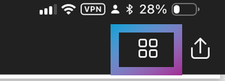
- If the PDF includes the necessary metadata for a table of contents, you’ll see an icon at the top right of the screen. Clicking on it, opens the table of contents.
- The table of contents with clickable chapters or sections will appear on the left side of the screen.

Optimized PDF Viewing with Reading Mode
You might have to read a PDF under varying lighting conditions. You can maximize your comfortability and readability of your document by adjusting the Appearance of that PDF. When viewing a PDF in OneDrive, you can adjust the background to dark mode, sepia mode, or light mode, making it easy to read no matter the type of environment.
To change the appearance of a PDF:
- Open a PDF in OneDrive for Android and tap to expand the bottom sheet of the screen.
- Tap Appearance.
- In the Appearance window, select the colored circle for day, night, or sepia mode.
Adjusting a PDF’s Orientation with Page Rotation
With PDF page rotation, you can simply adjust the orientation of any of the pages within a PDF document. This is especially useful for fixing multi-page scanned documents that may have been saved upside down or sideways. With the Rotation feature, you can choose to rotate all pages or just specific ones within your PDF.
To rotate a single page:
- Open the OneDrive iOS or Android app, then open the PDF with the page you want to rotate.
- Scroll to the page which you want to rotate. Press anywhere there isn’t text. Once a menu pops up, tap Rotate to rotate the page 90 degrees clockwise.
To rotate multiple pages:
- Open the OneDrive iOS or Android app, then open the PDF with the pages you want to rotate.
- At the top of your screen, tap the grid icon to show a thumbnail view of the PDF’s pages.
- Tap Select.
- Tap to select the pages which you want to rotate or tap Select all if you want to rotate them all.
- Tap the rotate icon on the toolbar along the bottom of your screen to rotate all the selected pages 90 degrees clockwise.

Exploring OneDrive’s Premium PDF Features
Now that we’ve explored all the free PDF features available, let’s dive into some exciting features available to our M365 Consumer customers with M365 Basic, M365 Personal, or M365 Family, and to our M365 Business customers with SharePoint Premium..
Extract Pages from PDFs
For our M365 paid customers, you can easily split a PDF into multiple smaller PDFs using the Extract tool. This makes it simple to pick and separate the pages you need, creating a brand-new (shorter) PDF file in just a snap!
How to split a PDF file using the Extract feature on OneDrive for Web:
- Open the PDF file you want to split.
- At the top left of the screen, click Extract action
- Select page(s) to extract then click Extract on top left of the screen.
- Choose where you’d like to save the new PDF file. You can also rename the file at the bottom of the save dialog then click Save here.
- When finished, a confirmation dialog appears at the bottom of the screen.
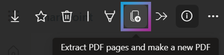
This feature also works on OneDrive on iOS, iPadOS, and Android. Here’s how:
- Open the PDF file you want to split.
- At the top left of the screen, tap see more button (…) to see the new menu.
- Select Extract from the menu options.
Merge Multiple PDFs
While the Extract feature let’s you pick out individual pages from a PDF, the Merge feature lets you easily combine multiple PDF files into a single PDF. It’s a simple as picking the files you want to merge, and voila – you’ve got a brand-new, merged PDF saved directly to your OneDrive or SharePoint Document Library.
Here’s how you can easily merge multiple PDF files into one PDF on OneDrive for web:
- Open one of the PDF files you want to combine in OneDrive for Web.
- At the top left of the screen, click Merge action.
- Choose two or more PDF files you want to merge from the merge dialog box. You can drag and drop the files to rearrange their order. Once done, click Next.
- Choose where you’d like to save the new PDF file. You can also rename the file at the bottom of the save dialog then click Save here.
- When finished, a confirmation dialog appears at the bottom of the screen.
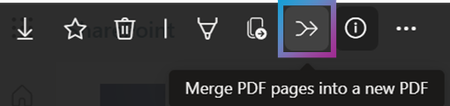
Just like Extract, you can also use Merge on OneDrive on iOS, iPadOS, and Android:
- Open one of the PDF files you want to combine in OneDrive.
- At the top left of the screen, tap see more button (…) to see the new menu.
- Select Merge.
Thanks
We’ve been on a focused journey enhancing the PDF features in OneDrive, because we know that for so many of our customers, it’s their file format of choice. We hope you find our new and existing PDF features in OneDrive useful in your life at work or at home.
But we don’t want to stop here, and we need your feedback to keep improving! Dive into these features, give them a spin, and let us know what you think. What works great? What could be better? And most importantly, what do you want to see next?
Drop your comments below or fill this short survey directly. Your insights are invaluable, and together, we can make OneDrive the ultimate tool for all your PDF needs.
Happy exploring! 📄✨
About the Author
Belle Podeanu is a product manager at Microsoft. She collaborates with Office, Edge, and other platforms to provide comprehensive cross-device functionalities for OneDrive and SharePoint, including productivity features and Copilot-enabled experiences. In her free time, she enjoys playing soul-like games, ARPGs, MMOs, and asymmetrical games.
Stay updated on OneDrive and SharePoint news by connecting with Belle here.
Microsoft Community Hub Team
Unsubscribe or manage notification settings
We value your privacy.
 Fight4justice